Setting Up Auto-Generated Numbering
The Set Up Auto-Generated Numbers page enables youi to choose the record types that should be automatically numbered in the order in which they are created. The Administrator role is required to set up auto-genearted numbering. For information about field settings, see Auto-Generated Numbering Settings and Auto-Numbering for Document and Transaction Numbers.
To set up auto-generated numbering:
-
Go to Setup > Company > General Preferences
-
Check the Show Transaction Numbering Setup box and click Save.
-
Go to Setup > Company > Auto-Generated Numbers.
-
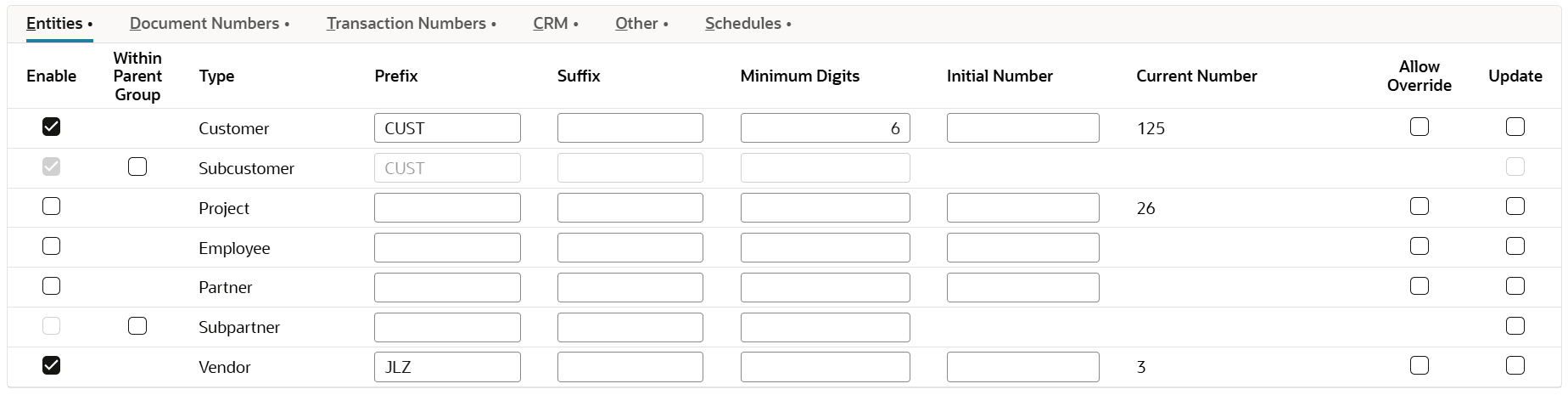
Customize your auto-generated numbering settings as required. Select Within Parent Group if you want to attach the subrecord number to the parent record number.
For example, you may want customer records to always have the prefix CUST and at least 6 digits. Click the Entities subtab and check the Enable box next to the customer record type. In the Prefix column, enter CUST, and in the Minimum Digits column, enter 6. The first number will be CUST000001.
Or, you want assembly build document numbers to end with DN, have at least 5 digits, and let you enter your own name or number. Click the Document Numbers subtab and in the Suffix column, enter DN next to the document numbers record type. In the Minimum Digits column, enter 5. The first number will be 00001DN. Check the Allow Override box to enter your own name or number on records.

-
Click Save.
To reset auto-generated transaction numbers, go to the Set Up Auto-Generated Numbers page and click Reset.
Related Topics
- Set Auto-Generated Numbers
- Overwrite Entity and CRM Record Type Numbers
- Auto-Generated Document Numbers
- Auto-Generated Transaction Numbers
- Reset Initial Transaction and Document Numbering Sequences
- Reporting
- Records and Transactions Available for Auto-Numbering
- Transaction Numbering Audit Log
- Advanced Numbering