Uploading Fixed Asset Records through CSV Import
To import fixed asset records:
-
Go to Setup > Import/Export > Import CSV Records.
-
In the Import Assistant - Scan & Upload CSV File screen, do the following:
-
From the Import Type list, select Custom Records.
-
From the Record Type list, select FAM Asset.
-
Select the asset CSV file.
-
Click Next.
-
-
In the Import Assistant - Import Options screen, do the following:
-
Set Data Handling to Add.
-
From the Custom Form list, select Standard FAM Asset Form.
-
Click Next.
-
-
In the Import Assistant - Field Mapping screen, do the following:
-
Map the fields in your CSV file to NetSuite fields as follows:
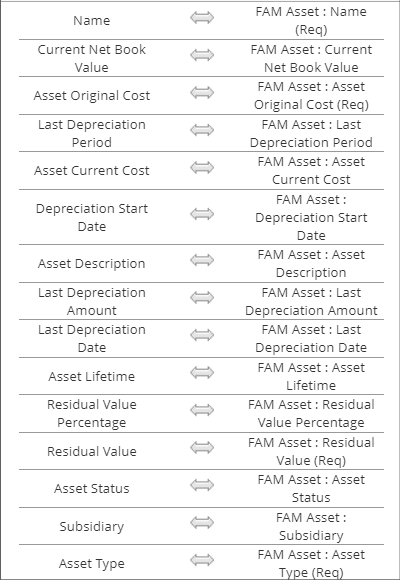
You can also add values for other fields. When you're finished, review the CSV and NetSuite fields to confirm that all fields are mapped.
Note:If you don't see the NetSuite fields, then the standard form isn't set as the preferred form. Be sure to select the standard form to show all fields.
-
Click Next.
To set default values and reference types on fields, see Setting Default Values and Reference Types.
-
-
In the Import Assistant - Save Mapping and Start Import screen, do the following:
-
Enter an Import Map Name and Description.
-
Click Save & Run.
-
When creating asset records through CSV import, default tax methods linked to asset types are also imported. But, some fields for the tax methods are blank. Run another import to update the fields with missing values. For more information, see Updating Tax Methods.