Uploading Tax Method DHRs through CSV Import
To import the CSV file as a tax depreciation history record:
-
Go to Setup > Import/Export > Import CSV Records.
-
In the Import Assistant - Scan & Upload CSV File screen, do the following:
-
From the Import Type list, select Custom Records.
-
From the Record Type list, select FAM Depreciation History.
-
Select the CSV file of the tax method depreciation history that you created.
-
Click Next.
-
-
In the Import Assistant - Import Options screen, do the following:
-
Set Data Handling to Add.
-
From the Custom Form list, select Standard FAM Depreciation History.
-
-
In the Import Assistant - Field Mapping screen, do the following:
-
Map the fields in your CSV file to NetSuite fields as follows:
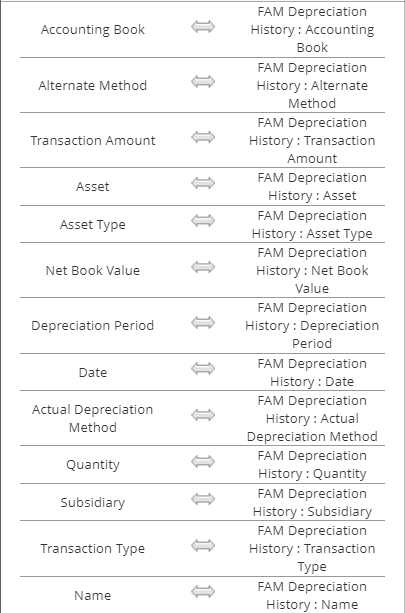
-
Click Next.
To set default values and reference types on fields, see Setting Default Values and Reference Types.
-
-
In the Import Assistant - Save Mapping and Start Import screen, do the following:
-
Enter an Import Map Name and Description.
-
Click Save & Run.
-