Filtering and Sorting Bills by Custom On Hold Field Example
The example in this topic shows how you can filter and sort transaction sublists using a custom On Hold field for bills. For an overview and general instructions on customizing transaction sublists, see Customizing a Transaction Sublist.
You may want to delay paying bills until certain criteria are met. To identify these bills on the Bill Payments page, you can add a custom On Hold field to the bill record. Add this as filter criteria to the Bill Payments page and then sort by the wanted setting to view bills that you must pay versus bills that should wait.
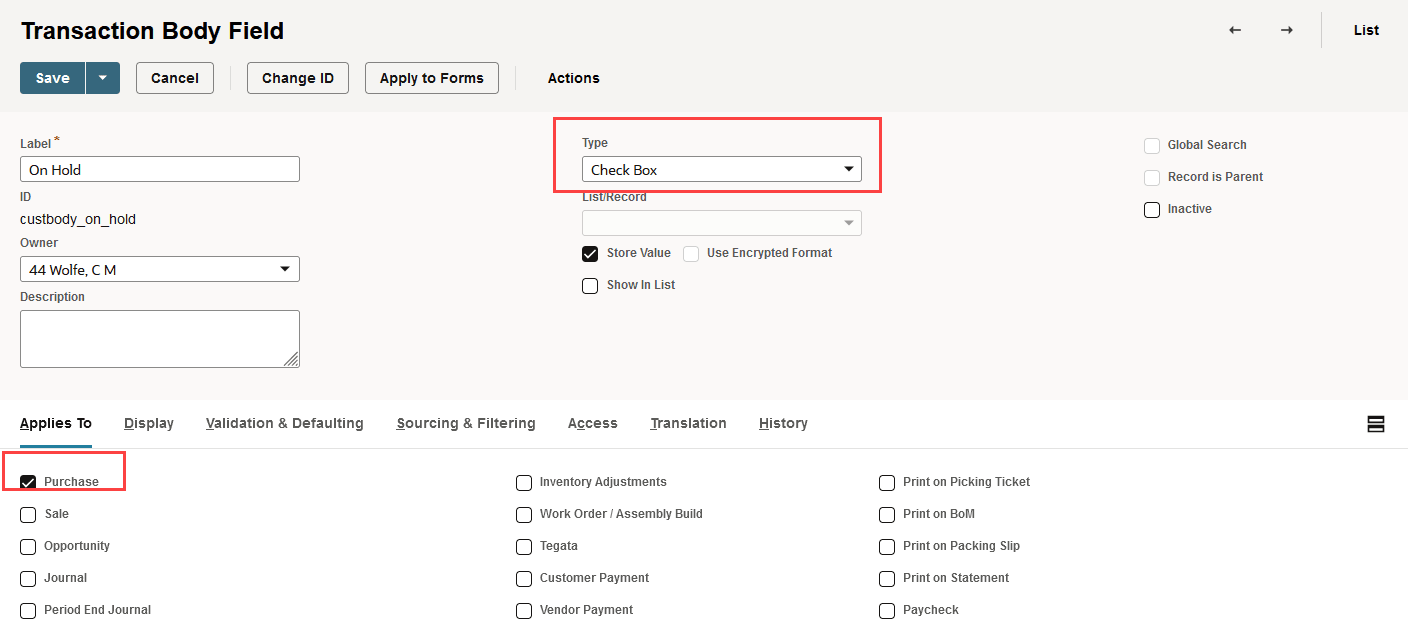
To set up this scenario, create a custom Transaction Body field of the Type Check Box and apply it to purchase records.
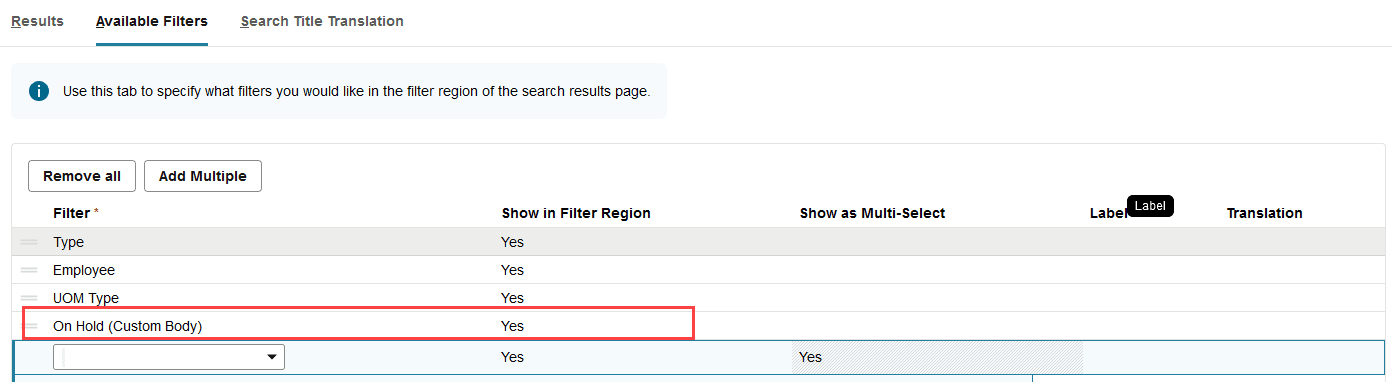
After bills are entered, go to the Bill Payments page, click Customize View and then select On Hold on the Additional Filters subtab.
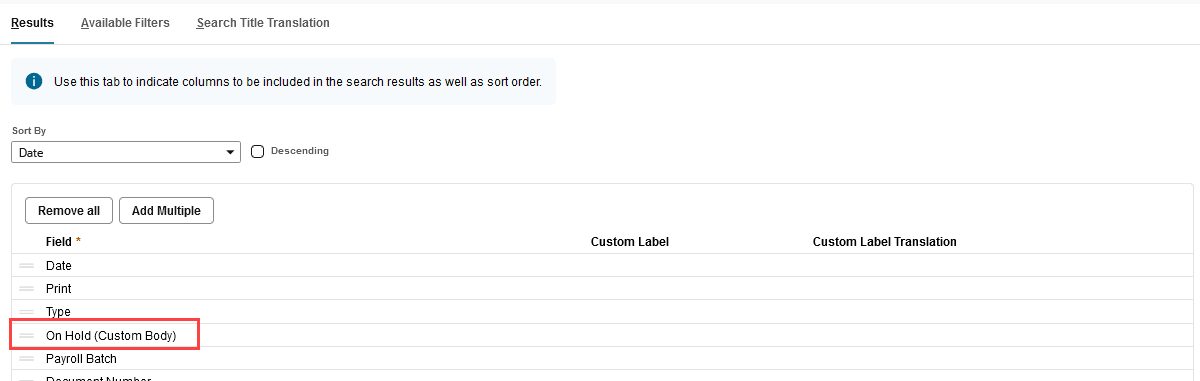
Add the On Hold field to the Results subtab and save.
You can now filter results to display only records that aren't On Hold.
