Option
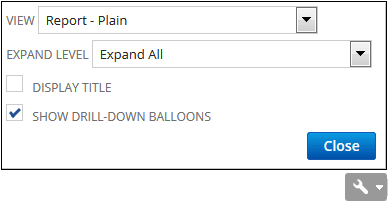
Expand the Options button  to access the following:
-
View - Choose to view your report in Report-Plain or Report-Grid format. (For an example, see To Add Grid Lines to Your Report.)
-
Expand Level - Select the level of hierarchy you want to view on the report:
-
System Preference. This option is only available for Financial Reports. If you select System Preference, it defaults as the value in the Display dropdown list of Financial Report Builder.
-
Collapse All. View only the top levels of the report.
-
Levels 1-3. Choose to view the top level plus an additional one, two or three levels of the report.
-
Expand All. View all the top and sublevels of the report.
This expand/collapse setting is saved, so you don't have to select it every time you view the report. Also, the setting stays the same when you print, email, schedule, or export the report to Microsoft Word or Adobe PDF.
-
-
Display Title - Check this box to add a header to your report that includes the company name, report title and the date or period range selected. This box is checked by default. If you clear this box, the header still appears on the printed report even though it is hidden on your screen. Note that hiding the report title makes more report data appear on the page. (The title isn't displayed when the report is exported to Excel or PDF.)
-
Show drill-down balloons - Check this box if you want to see balloons with text describing the record or transaction you can view. For example, if you hover over a customer's name, a balloon appears that says View Customer Record. Clicking the customer's name opens that customer's record.