View Site as of a Specific Date in Site Management Tools
This information applies to SuiteCommerce or the 2018.2 release of SuiteCommerce Advanced and later.
Because some content might be visible only during a specific time frame, you can preview your site as it would appear to a visitor on a selected date and time. Use the View Site As Of date picker on the site management toolbar to choose a date and time to see how your site displays. For details, see Setting Content Visibility in Site Management Tools. The following screenshot shows the View Site As Of option on the toolbar:
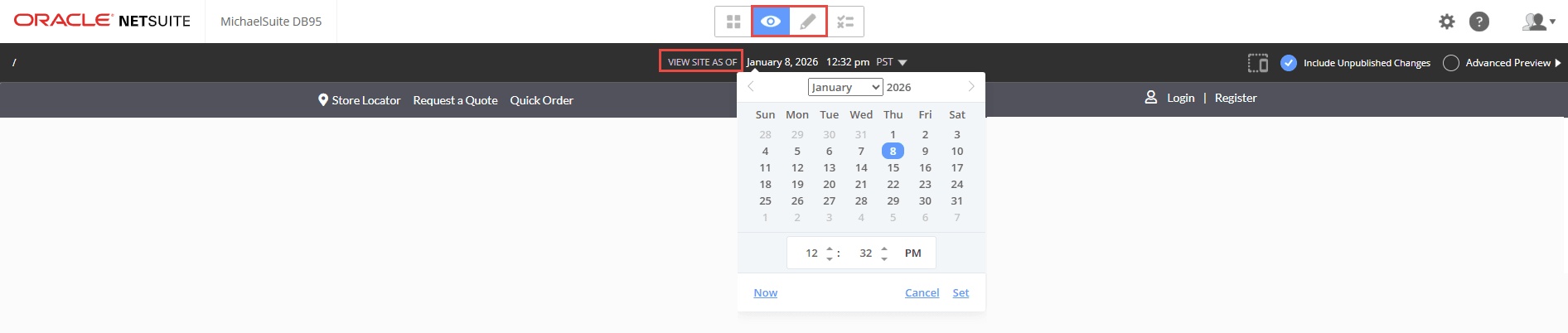
To view your site as of a specific date in Site Management Tools:
To see or edit upcoming published changes, click the Review & Publish Changes icon  on the site management toolbar and select Visibility Timeline. For details, see View Upcoming Content Using Visibility Timeline.
-
Log in to Site Management Tools. For details, see Logging into Site Management Tools.
-
Select the Preview Mode icon
 or the Edit Mode icon
  from the site management toolbar.
 -
Click View Site As Of.
-
In the date picker, choose the date and time you want to view your webstore, and click Set.