Changing the Layout of All Instances of a Page Type
This information refers to SuiteCommerce or the 2019.2 release of SuiteCommerce Advanced or later.
You can change the default page layout for every page of a specific type. For example, using the Page Layout Settings, you can change the layout of all your landing pages to any of the available layouts.
To change the layout of all instances of a page type:
-
Log in to Site Management Tools. For details, see Logging into Site Management Tools.
-
Click the gear icon from the site management toolbar.
-
Select Layout from the dropdown.
-
Click the thumbnail of the page that you want to change the layout for.
-
Scroll through the available page layouts and select the desired layout.
-
Click Set as default.
-
When prompted, click Change Layouts to confirm the change.
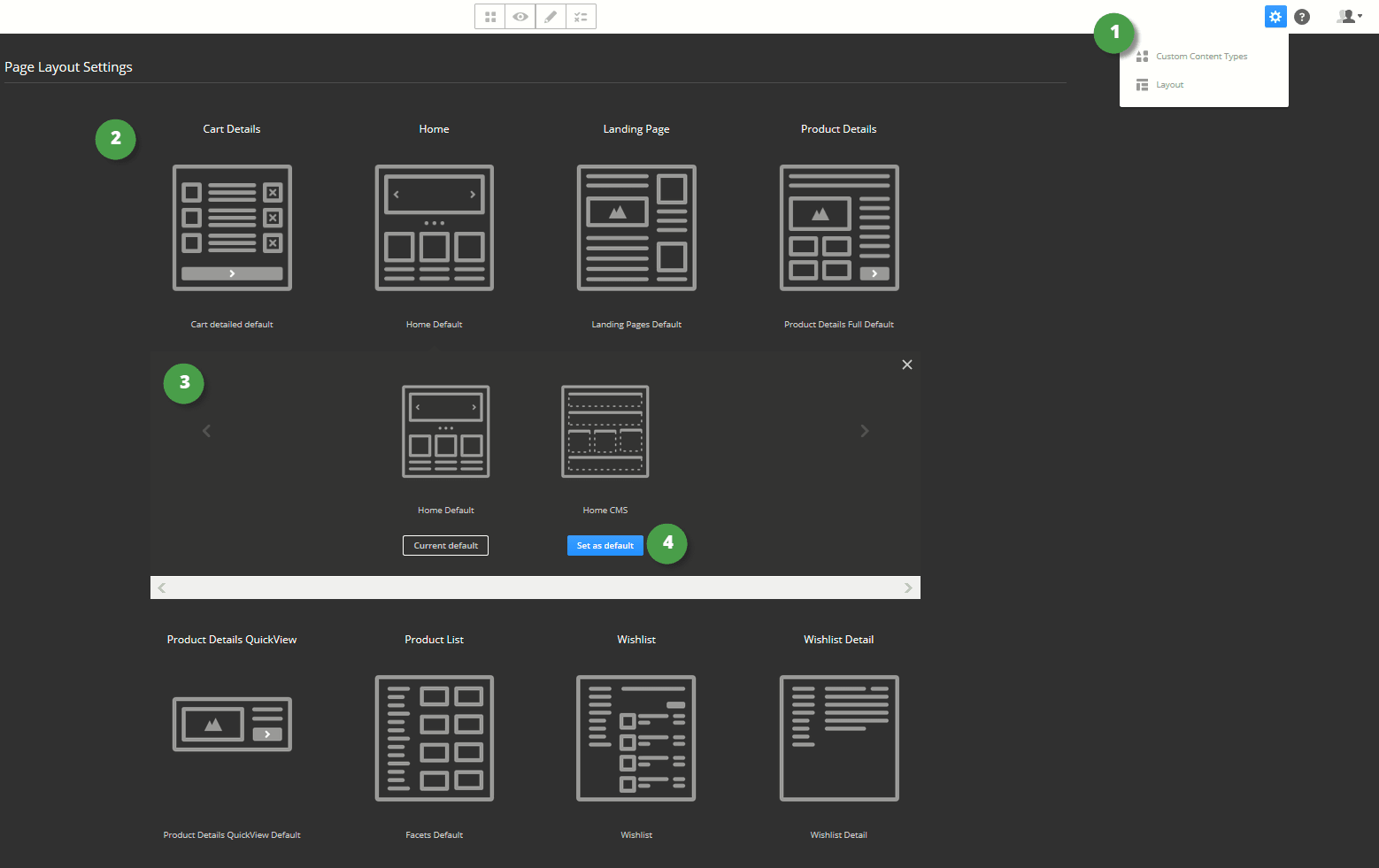
The following image shows the Page Layout Settings.
|
Item |
Description |
|---|---|
|
1 |
Settings Menu |
|
2 |
Current Page Layouts |
|
3 |
Available Page Layouts |
|
4 |
Set as Default |
When you make changes to the default layout, it will not change any previously made overwrites. For example, if you have a landing page using the layout sale, and you change the layout of all landing pages, it will not affect the page using the layout sale. Also, deploying a new bundle will not impact your exiting page layout.