Using Inline Editing
Inline list editing enables you to update records quickly by changing data directly in a record's row on the list page. This makes editing faster and easier since you don't have to open each record to make changes. You can also edit multiple records simultaneously by using keyboard commands. You can't edit addresses on list pages with inline editing.
Inline list editing is available when the Inline Editing feature is enabled. To enable the feature, go to Setup > Company > Enable Features. On the Company subtab in the Data Management section, check the Inline Editing box and click Save.
To use inline editing:
-
Use the Edit switch at the top of the page to turn on inline editing. When editing is off, the switch displays an x. When editing is on, the switch has a green check.
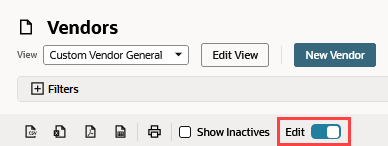
The list page refreshes to display an edit icon in each column header that contains editable fields. You can also identify editable fields by placing the cursor on them. A field is editable if the cursor turns into a hand when on the field.
Important:Display types affect whether fields are available for editing or not. For more information, see Setting Display Options for Custom Fields.
Important:Columns that display an edit icon in the header may include field values that aren't available for the inline editing due to data validation that prevents editing generally. The edit icon doesn't mean that you can use inline editing for every field in the column.
-
Click the field where you want to enter or change information.
-
Click away from the field to save your changes.
The data is automatically saved on that record.
Use the following keystrokes to move among editable fields:
-
Press Tab to move right.
-
Press Shift+Tab to move left.
-
Press Shift+Enter to move up.
-
Press Enter to move down.
-
Press Alt+X to edit the first editable field on the page.
-
Press Ctrl+Z to revert the value in a field back to the previous value.
-
Press Esc when you're done editing a field to save the new value and close the field.
You can also use the following tools to increase your data entry performance when inline editing is enabled:
-
Edit the same field on multiple records by pressing Ctrl and holding it as you select multiple fields.
Note:Note that you can only edit multiple fields in the same column. You can't edit multiple fields across different columns at the same time.
-
Click Add above the list to open a Quick Add popup window for the current record type.
-
Click the
 icon in the New column to open menu of related records. Select an option to create the new record on a separate page. The icon appears when you move your pointer over the column.
If you change many field values in one session using inline editing, NetSuite may have to update multiple records simultaneously. In this case, you may receive the following message: 'Too many inline edits. Please wait a few seconds and try the edit again.' You should be able to complete your most recent edit after a brief wait.
For more detailed information and considerations related to inline editing, see Additional Notes about Inline Editing.