Adding Time-Based Comparison Columns to Reports
You can customize reports to include comparisons across different date ranges or period ranges. To include data from multiple periods, you need to create several columns for the same field and set a different alternate date or period range for each. You can add comparison columns for any numeric value, such as dollar amount or item count. After you add comparison columns, you can also use them in formula fields to show variances between specific dates and ranges.
For example, a CFO may want an income statement to compare dollar amounts for different fiscal years. She can do this by adding multiple amount columns and selecting an alternate date range for each column. Then, she creates a custom formula field that shows the variance between years.
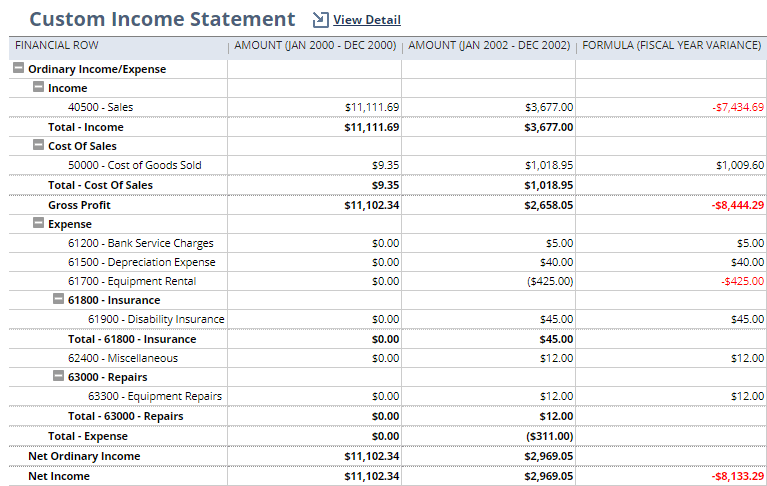
The overall report date range is set in a date filter on the Filters page of the Report Builder. You can change the date range by editing the date filter on the Filters page, or by choosing another date or period in the footer when you run the report. See Choosing a Date or Period Range for a Report.
You set alternate date and period ranges for columns on the Edit Columns page of the Report Builder. For financial statements, use the Financial Report Builder to edit columns. See Financial Report Builder Edit Columns Page.