Entering a Field Manually to an Advanced Template
Some fields can be added to advanced templates but aren't available in the Fields selector, for example, ${record.entity.email} refers to the Customer record through the entity field so that all body fields in the customer record can be accessed.
The following procedure describes how to add fields to the template manually.
To manually add a field to an advanced template:
-
Obtain the field ID for the field you want to add.
-
To make field IDs available, go to Home > Set Preferences and ensure that the Show Internal IDs box is checked on the General subtab, Defaults area.
-
Find the field in the NetSuite user interface and click the field label to display the field level help text.
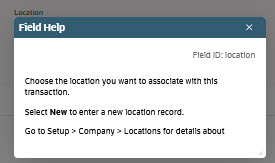
The field ID is displayed in the popup window.
Note:Field ID information is also available in the Advanced Templates Reference.
-
-
Go to Customization > Forms > Advanced PDF/HTML Templates and click Customize or Edit for the advanced template.
-
Place the cursor where you want to add the field on the template.
-
Add a text field, and enter the appropriate syntax for the field that you want to add.
The template editor supports a simplified syntax to get values for the fields to be printed. To see if a field is available in an advanced template, see Advanced Templates Reference.
For information about entering the syntax, read Syntax for Body Fields, Syntax for Sublist Fields, and Syntax for Fields from Joined Records and Searches.