Adding a Field to an Advanced Template
You use the Fields selector to add a field to an advanced template.
To add a field to an advanced template:
-
Go to Customization > Forms > Advanced PDF/HTML Templates and click Customize or Edit for the advanced template.
-
Place the cursor where you want to add a field in the template editor.
-
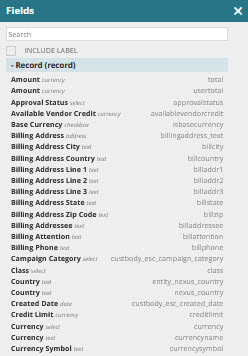
On the New Element toolbar, click the Fields button to open a selector that lists all fields you can add to your template.

-
The Fields selector lists all printable fields and sublists you can add, based on the features enabled in your account. For a complete list of fields and sublists, see Advanced Templates Reference.
-
Subrecords aren't supported, with the exception of address records.
-
Fields and sublists are listed alphabetically and grouped by record name, with data type and ID shown. Each record can be collapsed or expanded to show the available fields. To add a sublist to a template, you must edit the markup source. In addition, with the exception of address records, you can reference fields on a sublist only at the first level. Referencing sublists at the second level isn't supported. For more information about adding sublists to a template, see Source Code Editing in the Template Editor
-
You can use the selector's search to quickly find the field you need. Enter part of the field label in the selector's Search field to narrow the list of displayed fields.
-
-
If you want the field label to be displayed in the template along with the field value, check Include Label in the Fields selector.
-
To add multiple fields, use the mouse to separate the fields.
-
When you've finished adding fields, click the Close button.
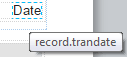
The fields are shown on the template. If you point to the label, the FreeMarker identifier for the field appears:
You can also enter FreeMarker syntax to add a field or label to the template instead of using the selector. With the exception of address subrecords (as of 2019.2), the selector doesn't include subrecord fields. You must use FreeMarker syntax to add non-address subrecord fields. For information about this syntax, see Syntax for Advanced Template Fields.
If you have the appropriate permissions, you can use FreeMarker syntax to include address subrecord fields and reference fields or labels in advanced templates.
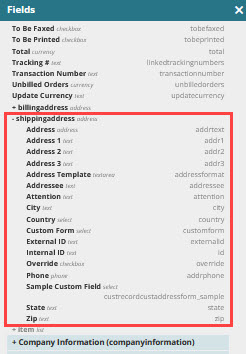
Adding Address Subrecord Fields to Advanced Templates
Advanced PDF/HTML Templates directly support the address subrecord. For the address subrecord, you can:
-
Use the field selector to directly select subrecord address fields, like City and Street, when you customize advanced PDF printing templates.
-
Select any custom fields created on the address.
-
Use text formatting (font, font size, color) to control the layout and appearance of the address in printed content.
-
Base template logic on address fields - for example, you can use template logic to determine output based on city, state, or zip code.
-
Use available address fields to translate addresses and print the translated labels of individual address fields.
Address fields available in UI: