Adding Custom Filters to a Report
The following procedure describes how to add custom filters to a report.
To add custom filters to your report :
-
Click Customize in the footer of the report.
-
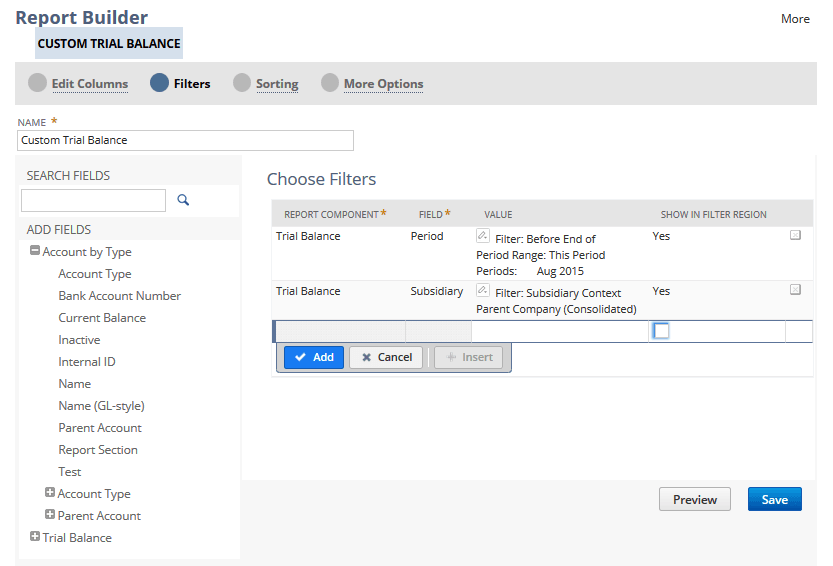
On the Report Builder (or Financial Report Builder) page, click Filters.
-
In the Add Fields pane, select the field you want to filter the report by.
You can browse the Add Fields pane or type the name of the field in the Search Fields and click Search.
When you select the field, it automatically adds a line for that field to the filter list in the Choose Filters panel.
-
In the Values column, select the filter conditions you want to apply. Filter options depend on the type of field you select.
-
If you want the filter to show in the report footer, check the box in the Show in Filter Region column. See Displaying Custom Filters in a Report Footer.
-
Click Done.
-
Repeat steps 3-6 to add more filters, if needed, then click Save.