Displaying Custom Filters in a Report Footer
You can add any custom filter to the footer of your report by checking the box in the Show in Filter Region column. See To add custom filters to your report : step 5. The Show in Filter Region column shows Yes for filters added to the report footer. For all other filters, the column is blank.
Some predefined filters are essential and always show in the footer. For these essential filters, the Show in Filter Region column automatically shows Yes and you can't edit it. By default, new filters you add to a report aren't included in the footer.
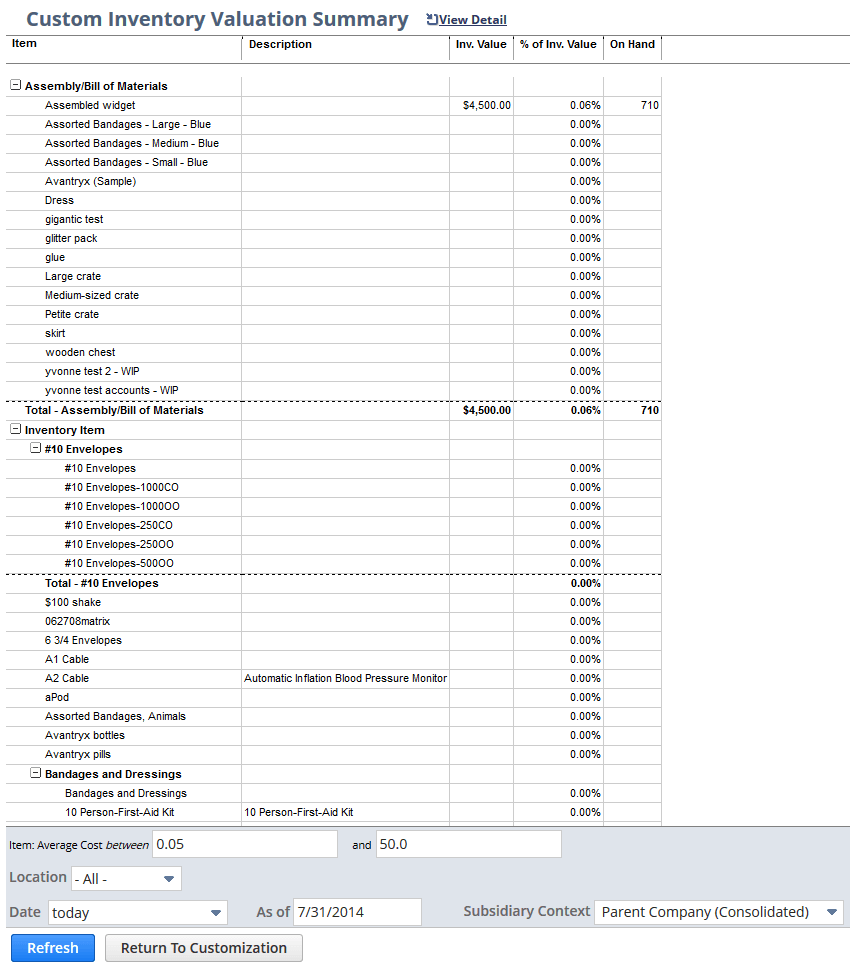
The Filter Field you select for the Value column sets the layout of the filter selector in the report footer.
Example:
For the Average Cost filter, you select the Filter Field between. The footer displays two text boxes (Average Cost between xx and xx) - as shown in the screenshot below. If you selected the Filter Field less than, the footer displays one text box only (Average Cost less than xx).