Create, Update, and Delete Prompts and Text Enhance Actions
You can use the N/llm and N/record modules together to manage prompts and Text Enhance actions. For a complete code sample, see Create a Prompt and Evaluate It.
To create a prompt or Text Enhance action, use record.create(options) and specify prompt as the record type to create a prompt record, or specify textenhanceaction as the record type to create a Text Enhance action record.
          const newPrompt = record.create({
    type: "prompt"
});

const newTEAction = record.create({
    type: "textenhanceaction"
});
You don't need to specify a script ID for new prompts or Text Enhance actions before saving them. If you don't specify a script ID, one is generated automatically when you save the prompt or Text Enhance action. You can view this script ID in Prompt Studio.
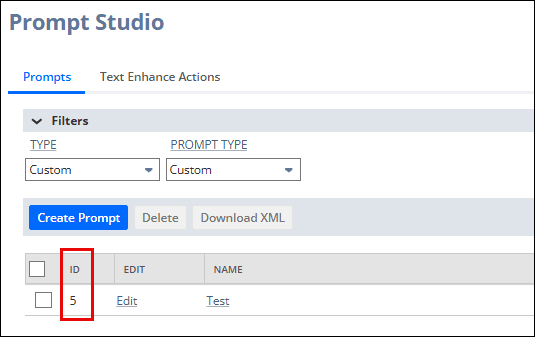
You can load an existing prompt or Text Enhance action record using record.load(options). This method accepts the type of record to load (prompt or textenhanceaction, as appropriate) and the internal ID (as a number) of the record. You can find the ID of a prompt or Text Enhance action that you want to load in Prompt Studio.
          const loadedPrompt = record.load({
    type: "prompt",
    id: 5
});

const loadedTEAction = record.load({
    type: "textenhanceaction",
    id: 6
});
After you create or load a prompt or Text Enhance action record, you can use record.Record object methods to work with the record. For example, you can use Record.setValue(options) to set the values of fields on the record. You must populate all required fields on a record before you can save it. For prompt records, the following fields are required:
-
name -
prompttype -
modelfamily -
template
For Text Enhance action records, the following fields are required:
-
name -
language
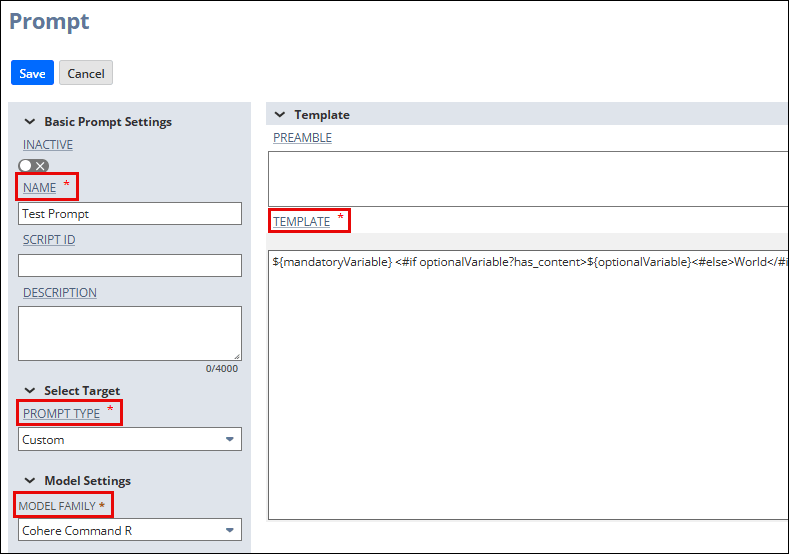
You can confirm which fields are required for prompt and Text Enhance action records in Prompt Studio when creating or viewing a prompt or Text Enhance action. Required fields are marked with an asterisk (*), and you can click the field name to see the field ID to use in your scripts.
          // The newPrompt record object was created in a preceding sample
newPrompt.setValue({
    fieldId: "name",
    value: "Test Prompt"
});

newPrompt.setValue({
    fieldId: "prompttype",
    value: "CUSTOM"
});

newPrompt.setValue({
    fieldId: "modelfamily",
    value: "COHERE_COMMAND"
});

newPrompt.setValue({
    fieldId: "template",
    value: "${mandatoryVariable} <#if optionalVariable?has_content>${optionalVariable}<#else>World</#if>"
});

// The newTEAction record object was created in a preceding sample
newTEAction.setValue({
    fieldId: "name",
    value: "Test Text Enhance Action"
});

newTEAction.setValue({
    fieldId: "language",
    value: "en-us"
});
To save the prompt or Text Enhance action record, use Record.save(options). To delete the prompt or Text Enhance action record, use record.delete(options).
          // The newPrompt record object was created in a preceding sample
newPrompt.save();

// The newTEAction record object was created in a preceding sample
newTEAction.save();

record.delete({
    type: "prompt",
    id: 5
});

record.delete({
    type: "textenhanceaction",
    id: 6
});