Creating the Custom Field for Steps in Creating Hierarchical Custom Records
After completing the steps to create the record instances described in Creating the Record Instances for Steps in Creating Hierarchical Custom Records, you can create the custom field that will be used on forms. For this example, the following steps create a custom entity field.
To create the custom field:
-
Go to Customization > Lists, Records, & Fields > Entity Fields > New.
-
In the Label field, enter Train Carriage.
-
In the Type field, select List/Record.
-
In the List/Record field, select Train Carriage.
-
On the Applies To subtab, select where the field should apply. For this example, check Customer and Project.
-
Click the Display subtab.
-
In the Subtab field, select where you want the field to appear. For this example, select Main.
-
Click Save.
You can now add this field to your forms as needed. For more information, see Configuring Fields or Screens.
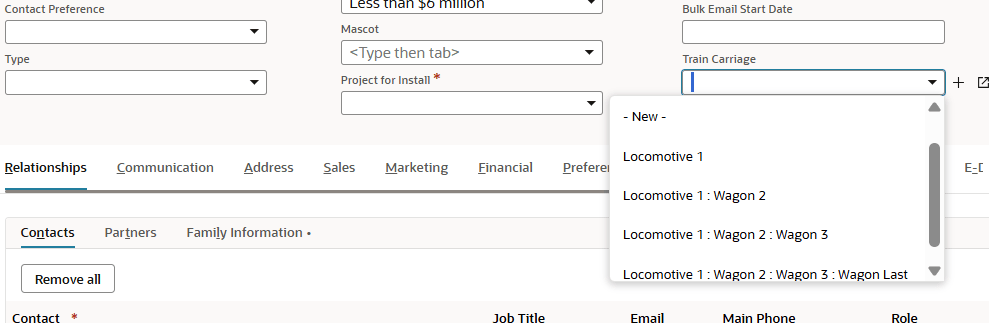
The field on a form looks similar to this: