Creating a Static Contact Group
You can create contact groups based on searches for the record they're associated with. For example, you could search for all customers with a specific sales rep and create a group of all contacts associated with these customers.
To create a static contact group based on customer or other criteria:
-
Go to Lists > Relationships > Groups > New.
-
Select Static.
-
Choose the kind of record you want to enter criteria for.
In the example mentioned above, you'd choose Customers. When you select Contact, the group can include members from more than one entity type.
-
Enter a name for your group.
-
On the Members subtab, click Add With Search.
-
Choose the criteria you want to use for the search.
-
Enter criteria for the records whose contacts you want to create a group from.
-
Click Search & Select.
-
Click Add Static Members.
-
On the Create Static Group page, click Save.
-
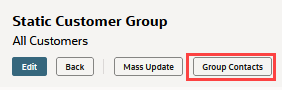
When the record has saved, click Group Contacts.
-
Enter a name for the static contact group.
-
If you want to remove any of the contacts from the group, choose the contact name and click Remove.
-
Click Save.
You can also create static contact groups from an entity group. To do this, open an entity group record, and click Group Contacts at the top of the record.
You can also use CSV Import to create and update static Contact groups. For more information, see Group Import.