Adding a Blog Spotlight
With Site Management Tools (SMT), you can add a blog spotlight that highlights a few blog posts based on filters or keywords. You can set the spotlight title and choose how to display the article cards containing a blog post excerpt and thumbnail. For example, you might add a blog spotlight on the Woven Chair Product Detail page (PDP) and set the filters to 'interior design' and 'chair.' When visitors to your site go the Woven Chair PDP, they'll see a blog spotlight featuring posts about chairs and interior design.
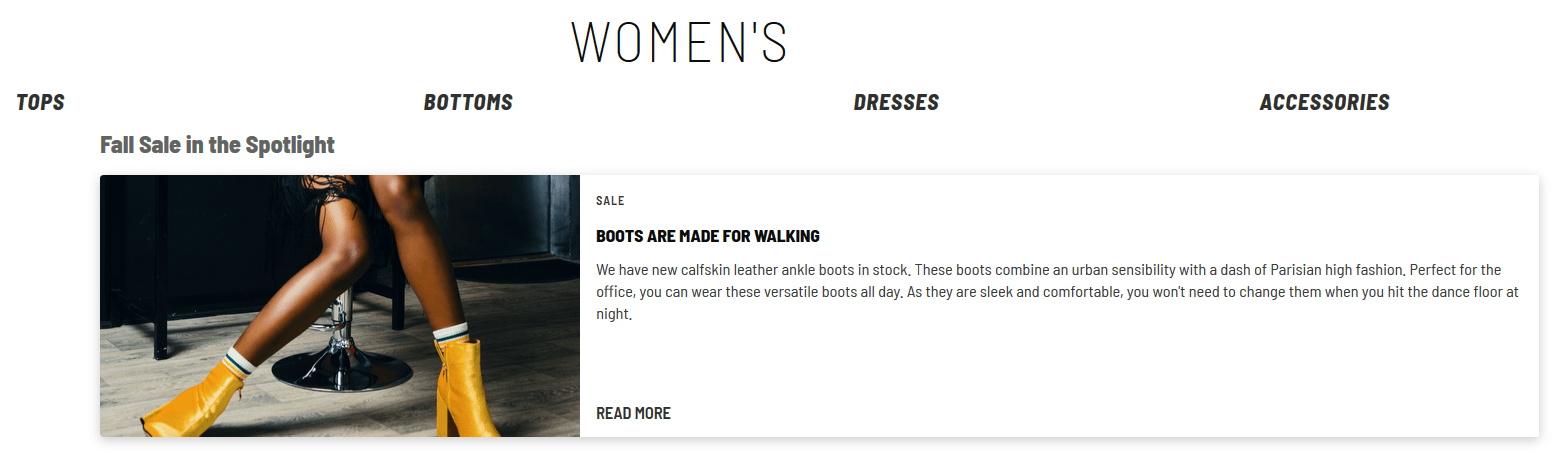
The following image shows an example of the blog spotlight.
To add a blog spotlight:
-
Log in to SMT. For details, see Logging into Site Management Tools.
-
Go to the page where you want to add a blog spotlight.
-
Select the Edit Mode icon
 from the site management toolbar.
 -
Click the Add icon
 from the site management toolbar.
 -
Drag the Blog Spotlight content type onto the page. You can add the content type to multiple areas of the page:
-
If you drag onto an area marked all pages, your content shows on any page that contains that area.
-
If you drag onto an area marked page type, your content shows on any page of that type.
-
If you drag onto an area marked this page, your content shows only on that page.
Note:If you don't see this content type, first check that the extension has been installed and is active. Then, click the gear icon on the site management toolbar and select Custom Content Types. Drag the content type from the Inactive Content Types list to the Active Content Type list.
-
-
From the Blog Spotlight Settings panel that appears, select the General subtab and set the following fields:
Field
Description
Name
Enter a description for the blog spotlight.
Visibility
Set when you want to display the content. For details, see View Site as of a Specific Date in Site Management Tools.
Tags
Add keywords to help filter your content. For more information, see Content Tags and Filter Tools.
Blog Spotlight Heading
Sets the title for the blog spotlight to appear above the article cards. Basic HTML formatting tags are supported.
Vertical Thumbnail-Text Alignment
If checked, displays the thumbnail above the text in the article card. If cleared, the thumbnail displays to the left of the text in the article card.
Number of Article Cards
Determines the number of blog article cards to include in the list.
-
Select the Filters subtab and set the following fields:
Field
Description
Category
Sets the blog post category. The posts labeled with the selected category appear in the spotlight.
Author
Sets the blog post author. The posts by the selected author appear in the spotlight.
Tags (separated by commas)
Sets one or more blog post tags, which should be listed separated by commas. The posts with the selected tags appear in the spotlight.
Additional Sections
Sets one or more additional blog sections. The posts included in the selected additional sections appear in the spotlight.
The options for this field are based on the Pin to Post field options, found when editing a blog post page using Site Management Tools.
OR Search by text
Determines the keywords to search for in the blog post Heading, Excerpt, and Post Tags. The posts containing the keywords appear in the spotlight.
If you use this search feature, the Categories, Authors, Tags, and Additional Sections fields are ignored.
Note:If you set more than one filter, blog posts are only included if they meet all the requirements. For example, if you set the Category to Interior Design and the Author to Bob Smith, only posts by Bob Smith in the Interior Design category will show up in the spotlight. If Bob Smith wrote a post but set it to the Architecture category, it won't be included.
-
Click Save.
-
Publish the change. For more information, see Review and Publish Content in Site Management Tools.