Creating the User Event Script and Starting the Debugger Example
First, you create your user event script file and upload it.
To create the user event script and start the debugger:
-
Create your user event script file and upload it to the File Cabinet. An example script is shown here:
/** * @NApiVersion 2.1 * @NScriptType UserEventScript */ define (['N/record'], function (record) { function beforeLoad(context) { if (context.type !== context.UserEventType.CREATE) return; var customerRecord = context.newRecord; customerRecord.setValue('phone', '555-555-5555'); if (!customerRecord.getValue('salesrep')) { customerRecord.setValue('salesrep', 59); // replace 59 with a value specific to your account } } function beforeSubmit(context) { if (context.type !== context.UserEventType.CREATE) return; var customerRecord = context.newRecord; customerRecord.setValue('comments', 'Please follow up with this customer!'); } function afterSubmit(context) { if (context.type !== context.UserEventType.CREATE) return; var customerRecord = context.newRecord, if (customerRecord.getValue('salesrep')) { var call = record.create({ type: record.Type.PHONE_CALL, isDynamic: true }); call.setValue('title', 'Make follow-up call to new customer'); call.setValue('assigned', customerRecord.getValue('salesrep')); call.setValue('phone', customerRecord.getValue('phone')); try { var callId = call.save(); log.debug('Call record created successfully', 'Id: ' + callId); } catch (e) { log.error(e.name); } } } return { beforeLoad: beforeLoad, beforeSubmit: beforeSubmit, afterSubmit: afterSubmit } }); -
Create a script record for your script. For this example, set the Name field to Debug Customer w/ 2.1 UE and set the Applies To: field to Customer.
-
To have the script appear on the debugger tab, it must be executed by creating and saving a new Customer record (List > Relationships > Customers > New).
-
Go to Customization > Scripting > Script Debugger.
-
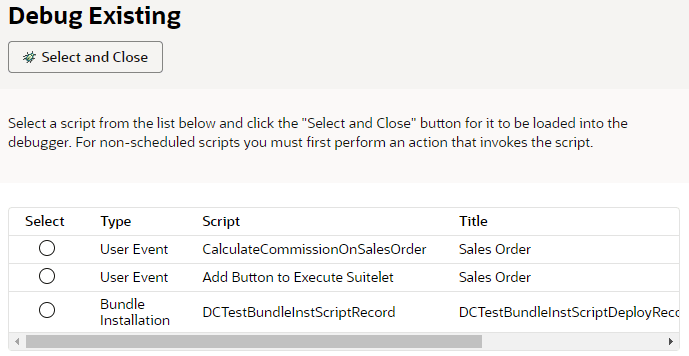
Select Debug Existing and select the Debug Customer w/ 2.1 UE user event script.
-
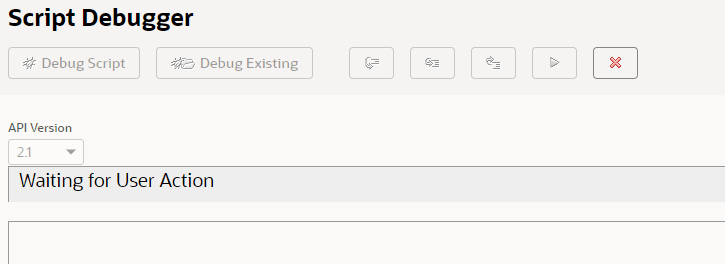
Click Select and Close. The Script Debugger waits for a user action to proceed:
-
Follow specific instructions for debugging each entry point.